Common user functions
Warning
Must have a valid FLIP account. If you do not have one, please liaise with your local FLIP system administrator and/or information asset owner (IAO), and provide your email address and confirmation of which role you require.
Although this page covers functions common to all FLIP users regardless of User Roles throughout the various stages involved in preparing an AI model for federated learning, actions related to project process flow are described from the perspective of users with the researcher role. Users with the viewer role have read-only access to projects they are assigned to; actions such as creating projects, running queries and uploading files are not available to viewers.
Users with the admin role may perform all the functions of those with the researcher role, and are additionally solely responsible for approving and un-staging a project. Each user holds exactly one role (see User Roles). For more information, please refer to the FLIP Admin subsection or the broader System administration section.
FLIP uses the concept of a project, in which multiple AI models can be managed. Projects can have multiple users associated with them, allowing individuals to view and contribute to the project. The typical project flow involves the creation of a project, running a cohort query, staging the project for approval, uploading the model plus any associated files and initiating the training. Once training is complete, the results of training can be downloaded.
To facilitate federated learning and concurrent training of multiple models on the platform, FLIP supports both NVIDIA FLARE and the Flower Framework as federated learning backends. This page covers concepts such as FL nets and job scheduling. For details on framework-specific file requirements and job types, see the FL nodes component page.
Initial Login
Enter your email address and one-time password
Click the ‘Login’ button
Reset password
Note
The password must meet minimum complexity requirements, consisting of at least 8 characters which include upper and lowercase letters, at least one numeric character and at least one special character e.g., @, #, &, !, ?, etc.
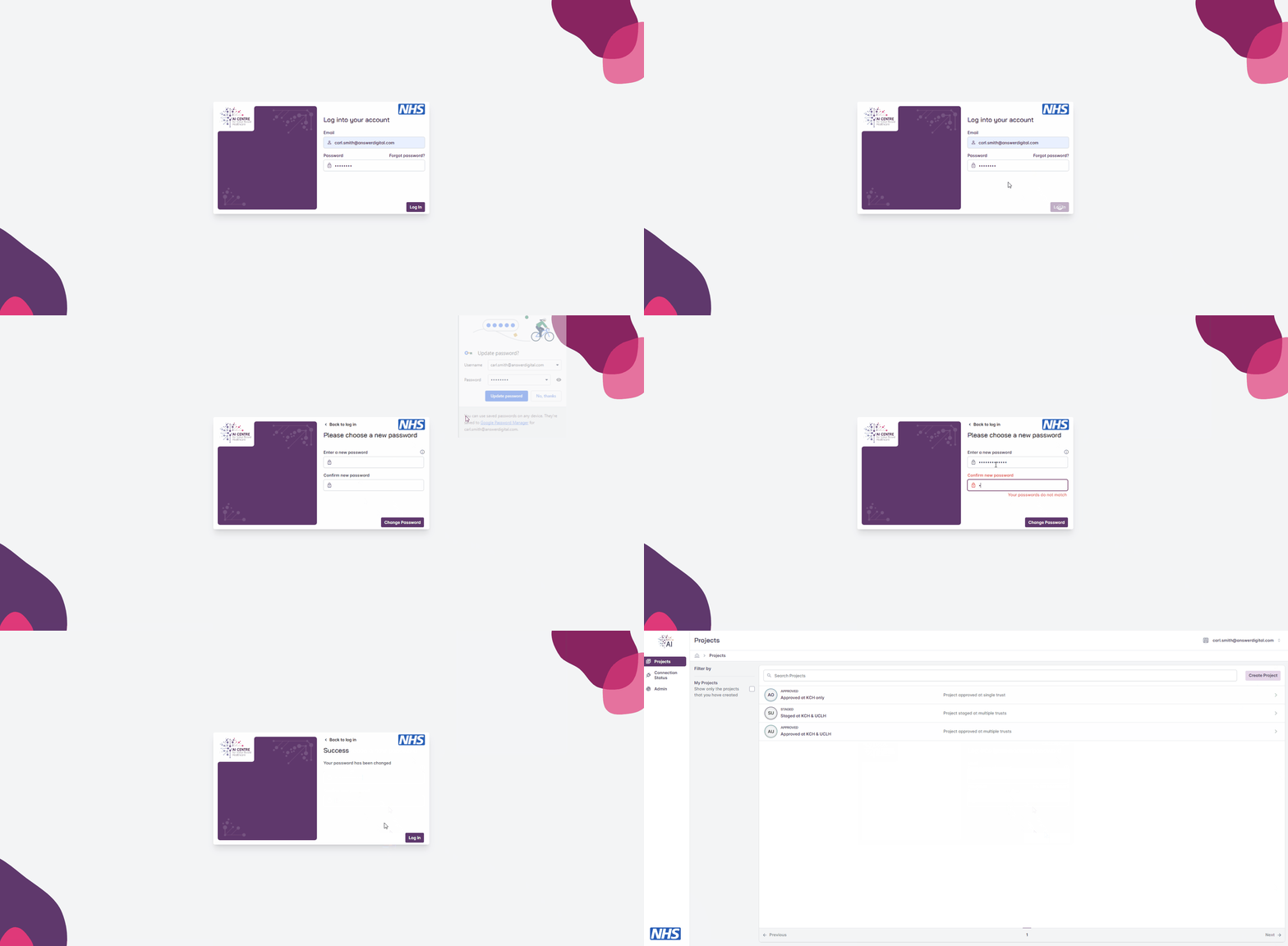
Logging into FLIP for the first time.
On subsequent visits, sign in with your email address and password to reach the Projects page.

Signing in to FLIP.
Forgot Password
Click the ‘Forgot Password?’ button on the login page
Enter the email address for your FLIP account
Click the ‘Request Code’ button
After you have received the confirmation code be sent by email, enter the confirmation code and a new password
Click the ‘Change Password’ button
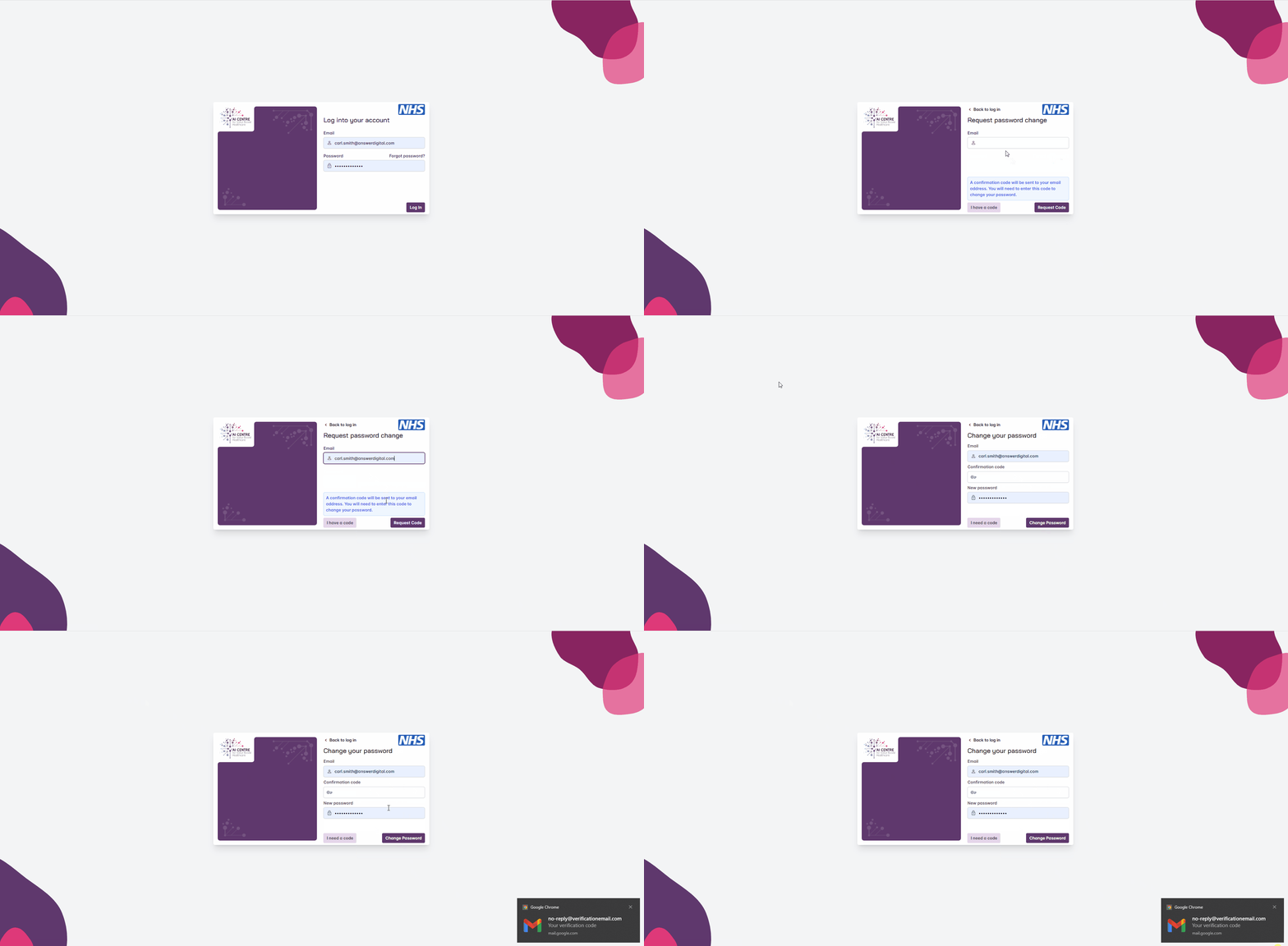
Resetting a forgotten password.
Note
You may also speak to your local FLIP system administrator and ask them to perform the reset for you, in which case you will receive an email including the confirmation code required to change your password.
In this case, you will select the ‘I have a code’ button rather than the ‘Request Code’ button in the above process.
Change Password
While signed in, you can change your password at any time from the account menu.
Open the account menu in the top right-hand corner
Click ‘Change Password’
Click the ‘Request Code’ button to have a confirmation code emailed to you
Enter the confirmation code and a new password
Click the ‘Change Password’ button

Changing your password while signed in.
Dark Mode
FLIP supports light and dark display modes. Your choice is remembered across sessions.
Open the account menu in the top right-hand corner
Click ‘Dark Mode’ to toggle between the light and dark themes

Switching between light and dark mode.
Projects
Warning
Must be logged into FLIP and have the appropriate RBAC User Roles.
Once logged in, you’ll be presented with the Projects page, in which you can create new projects, view projects that you have created or projects that you have been invited to participate in.
Create Project
Click the ‘Create Project’ button on the top right-hand corner of the page
Enter the project name and description
If necessary, enter the email addresses of other FLIP users and click the ‘Add’ button to enable them to view, edit, and/or contribute to the project
Click the ‘Create Project’ button
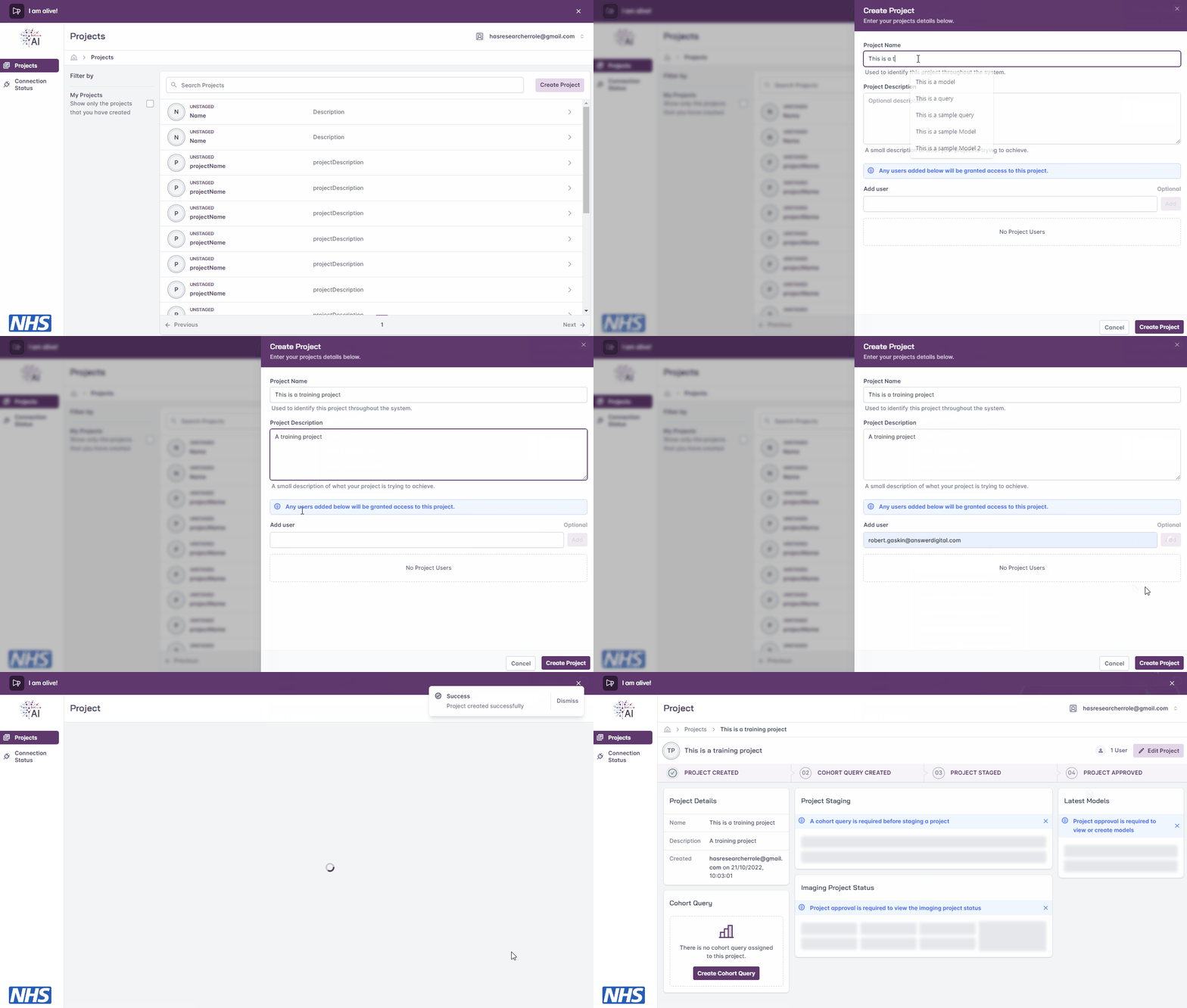
Creating a new project.
Edit Project
Click the ‘Edit Project’ button
Update the project details, such as project name, description and added users
Click the ‘Update Project’ button

Editing a project.
Warning
Projects may be edited up until the point at which it is staged for approval. If a project needs to be amended after staging, you will need to liaise with your local FLIP administrator un-stage the project and re-enable editing.
Delete Project
Note
You must be either the project owner or a user with the admin role to perform this action.
Projects can be deleted at any time, but:
Any running training sessions will be deleted and no longer accessible
Images associated with the project will be deleted from XNAT
The project will no longer be visible within XNAT
Select ‘Edit Project’
Under ‘Advanced Options’, click the ‘Delete Project’ button
Enter the project name
Click the ‘Continue’ button
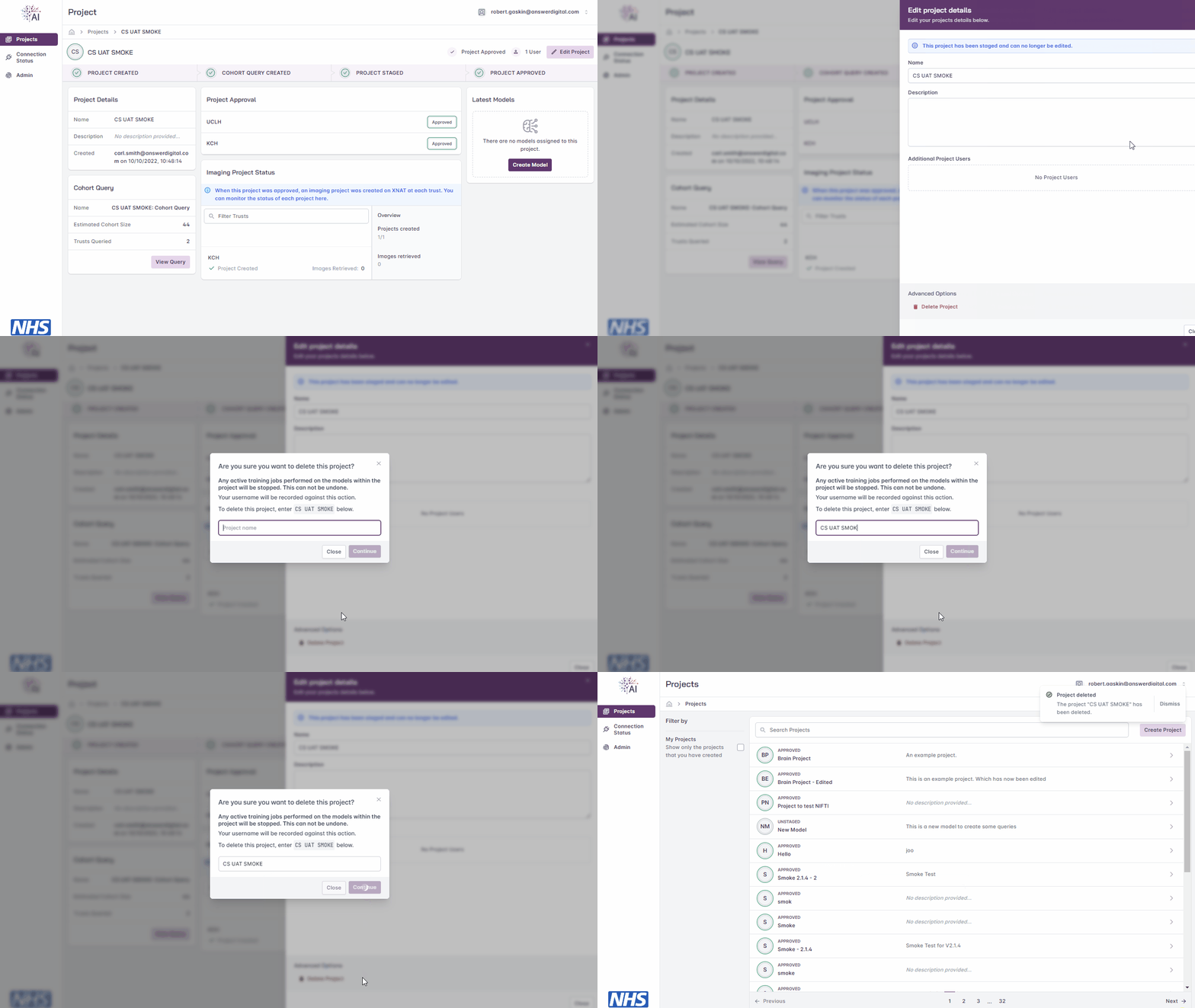
Deleting a new project.
Project List
All projects which you are able to access are visible on the project list, including those which you have created or have been granted access to. Users with the admin role will be able to view all projects.
Users can apply a filters to view only projects based on, for example, the current user, keywords found in the project and/or project description.
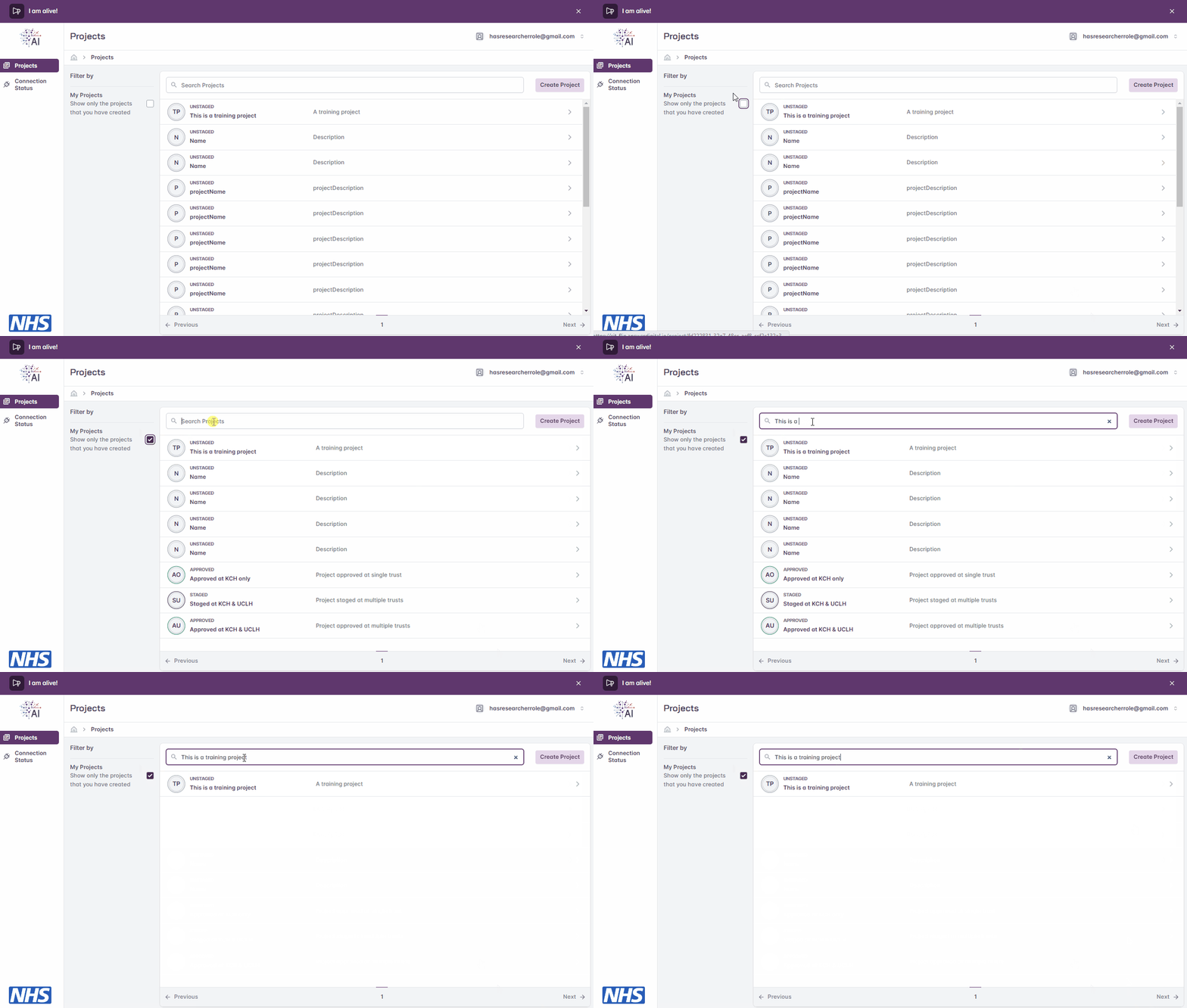
Filtering list of projects.
Cohort Query
Cohort data is stored within a PostgreSQL database conforming to the standard OMOP data model, with the R-CDM radiology tables included. The radiology_occurrence table has been modified to include an accession_id field which contains the reference to the associated DICOM series. As this is the field that XNAT will read from when retrieving the associated DICOM series from PACS, the ‘accession_id’ needs to be included in all queries if relevant images are to be made available.
Create Cohort Query
Note
A number of keywords are restricted and the cohort query will not be run in the instance that any of these keywords are entered, such as:
alter user
alter table
alter database
drop table
drop user
drop role
drop database
create table
substring
Click the ‘Create Cohort Query’ button in the bottom left corner of the project page
Enter a query in SQL format, for example:
SELECT accession_id, concept_name, year_of_birth FROM omop.person p
JOIN omop.radiology_occurrence r ON r.Person_Id = p.Person_Id
JOIN omop.concept c ON p.gender_concept_id = c.concept_id
WHERE year_of_birth < 1980
Click on the ‘Run & Save Query’ button
View results returned in graphical format
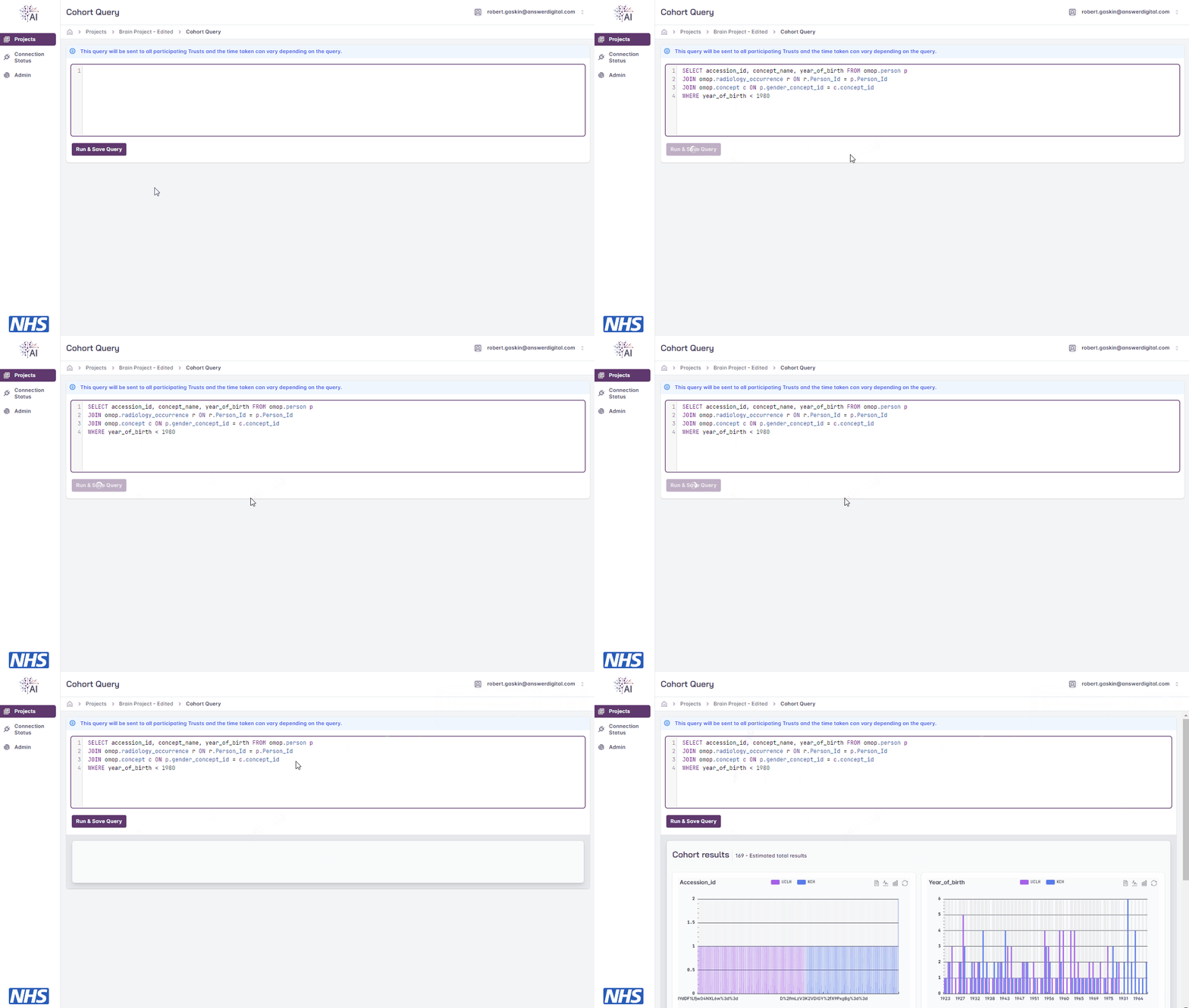
Creating a cohort query.
Edit Cohort Query
Warning
A project’s cohort query may be edited up until the point at which it is staged for approval. If a project’s cohort query needs to be amended after staging, you will need to liaise with your local FLIP administrator un-stage the project and re-enable editing.
In the event users want to amend the project cohort query or need to due to query timeouts, they can do so and re-run the query.
On the Project page, click the ‘View Query’ button
The cohort query can be amended and re-run following the steps outlined in the Create Cohort Query section
Project Staging
Note
You will be able to ‘stage’ your project for approval once the project has a cohort query saved.
Staging allows you to select which Trusts will be requested for approval and included in the model training cycle, i.e. use the toggle switch next to each Trust to include/exclude them.
Warning
Once staged, the project details and cohort query are locked from further editing. If a project’s details and/or cohort query needs to be amended after staging, you will need to liaise with your local FLIP administrator un-stage the project and re-enable editing.
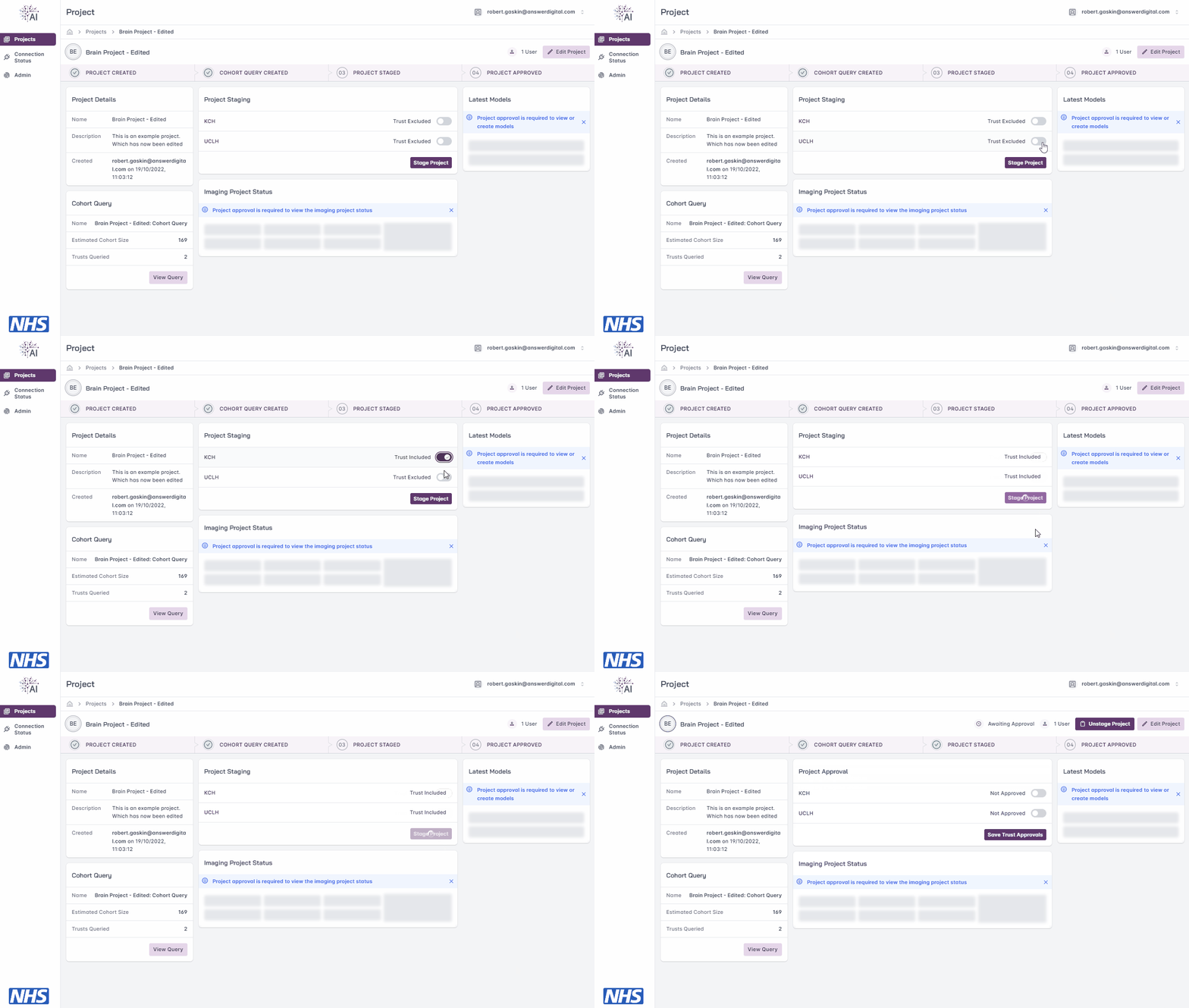
Staging a project.
Project Approval
Once staged for approval, it is the responsibility of the FLIP Central Hub Admin to complete the approval process offline and update the FLIP platform with the outcome.
Note
Following approval, any Trusts which have declined to participate in the project will be unavailable and excluded from model training.
Imaging Project Status
Following project approval, a corresponding XNAT project will be generated at each participating Trust and relevant imaging data will be imported from their respective PACS systems. For more information on this integration, please see the XNAT page.
To view the progress of the imaging data import at each participating Trust, users can refer to the Imaging Project Status section on the project page.

Imaging status overview
Note
Importing large sets of studies from PACS systems can take a very long time and individual imports may fail if the system is under too much strain. Overtime, FLIP will automatically reimport failed studies as indicated by the reimport count. Once the reimport cap is reached, failed studies will no longe be reimported. If there are still failures present, please contact an XNAT administrator. Manual intervention may be needed.

Reimport cap has been reached
Models
Warning
Project must be approved before proceeding with creating models and initiating training.
Create Model
Navigate to the project page
Click the ‘Create Model’ button
Enter a name and brief description
Click the ‘Create Model’ button
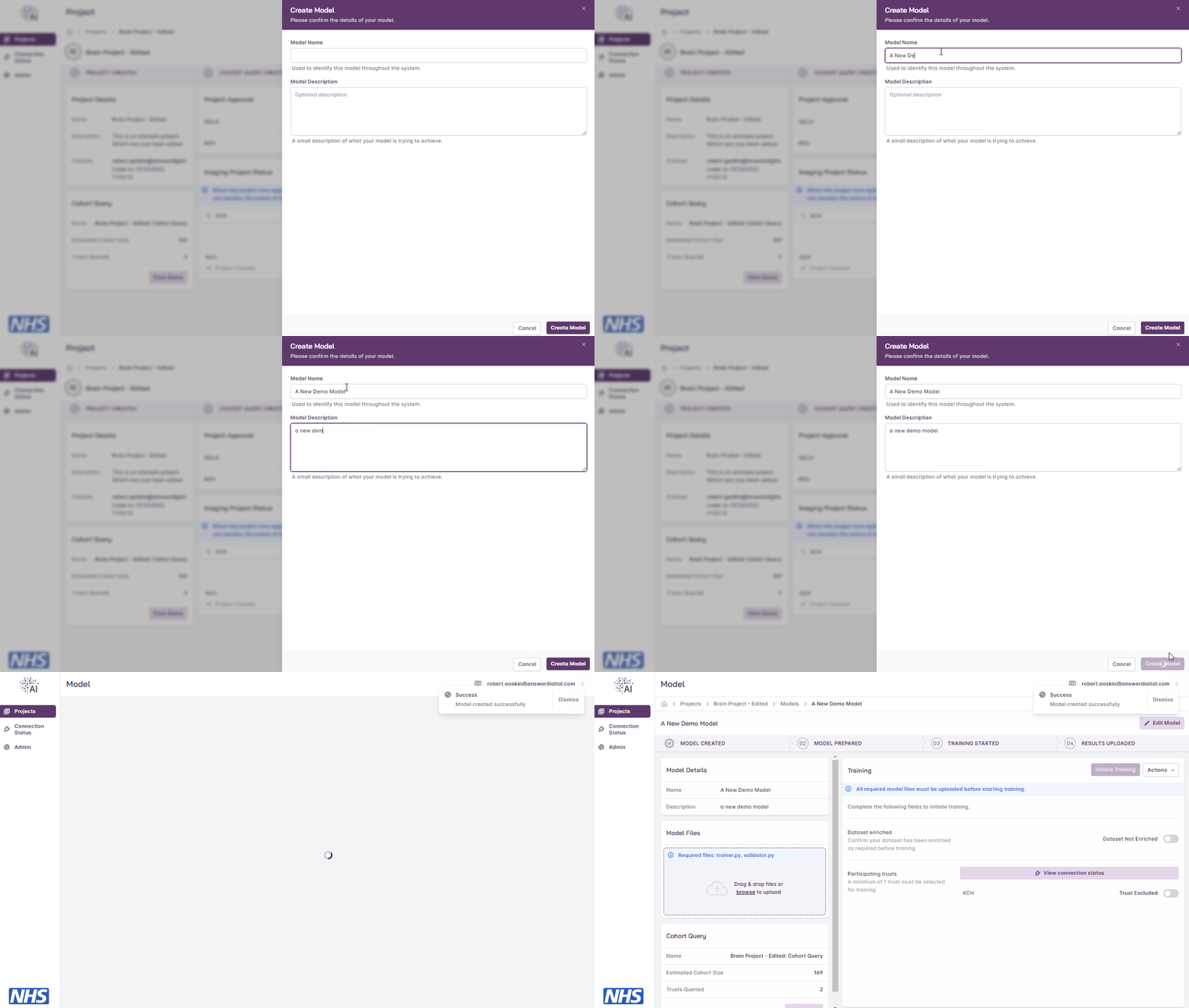
Creating a model.
Edit Model
Note
Users can edit the model up until the point at which the model’s training has been initiated.
Navigate to the project page
Click the ‘Edit Model’ button
Update the model details, such as model name and description
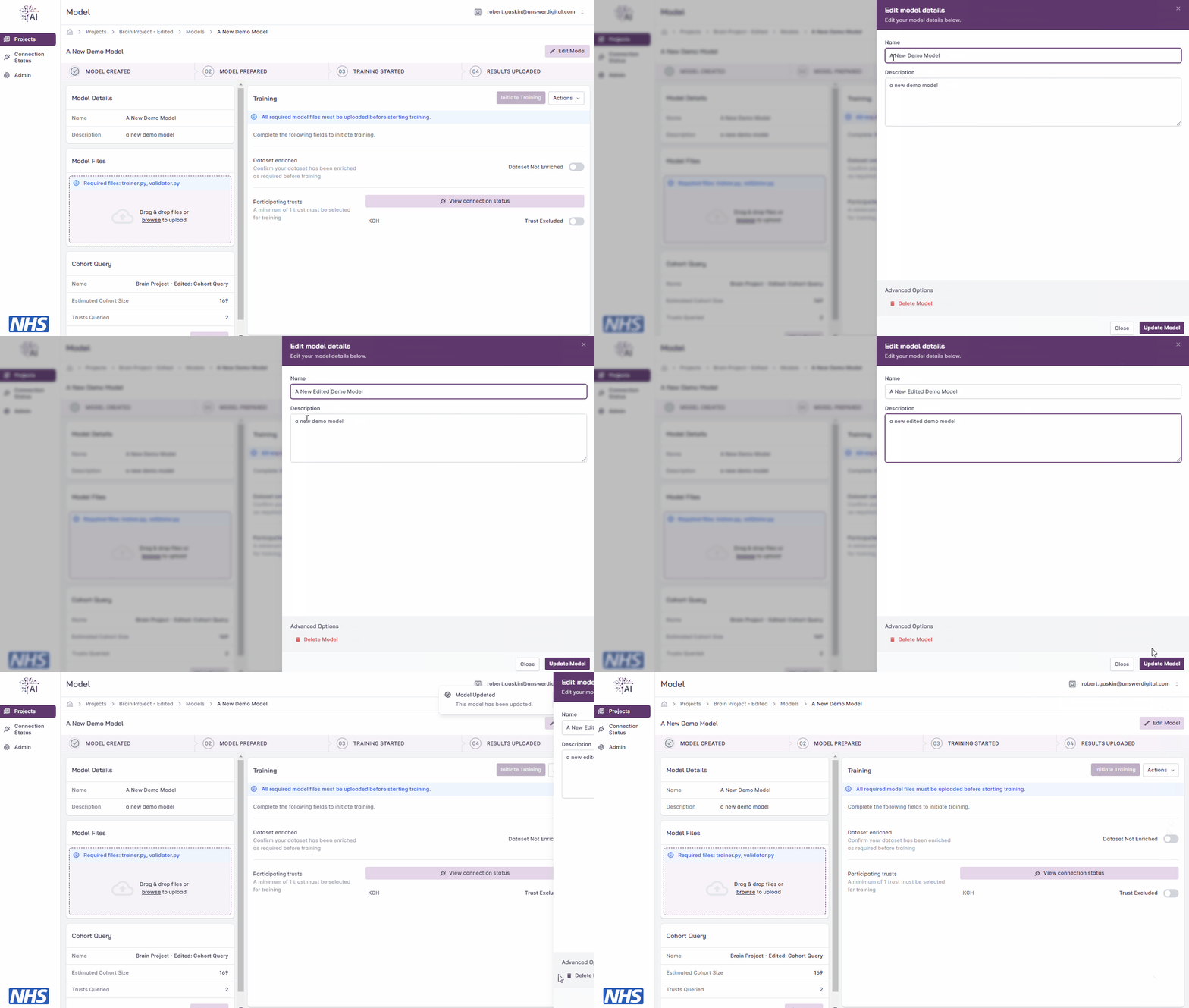
Editing a model.
Delete Model
Note
You must be either the project owner or a user with the admin role to perform this action.
Models can be deleted at any time, but if training is in progress at the time of deletion, the model training will be stopped and the model will no longer be accessible.
Navigate to the project page
Click the ‘Edit Model’ button
Under ‘Advanced Options’, click the ‘Delete Model’ button
Enter the model name
Click the ‘Continue’ button
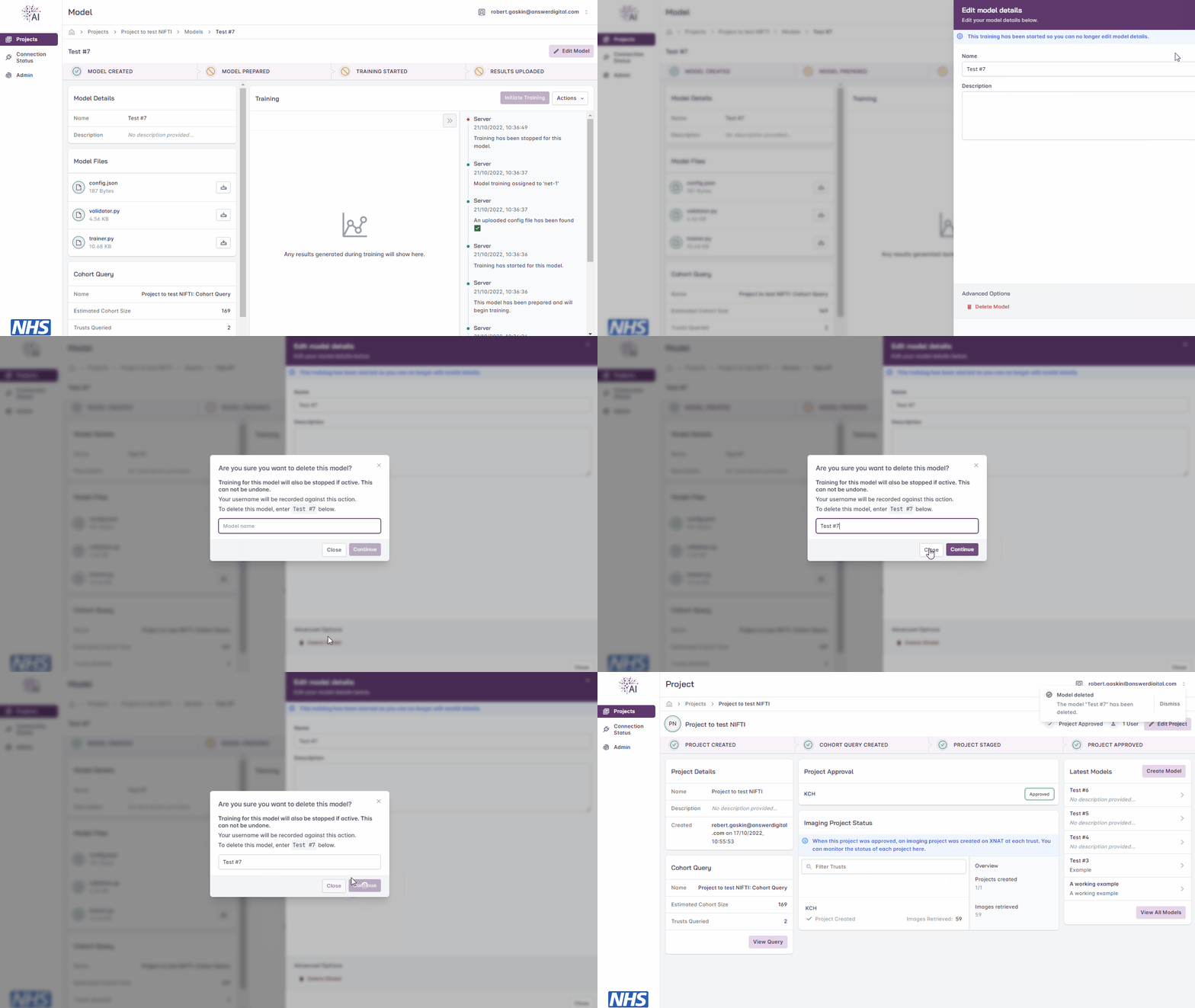
Deleting a model.
Model Files
Note
A model must be created before proceeding to upload model files and prepare the model for training.
For NVIDIA FLARE apps, the minimum required files are:
validator.pytrainer.py
Additional files may be uploaded, especially if these are referenced by the validator or trainer. A config file may also be uploaded (see Training Configuration section for more information), in which optional variables can be defined.
For Flower apps, the required files differ (e.g. client_app.py, pyproject.toml). See the FL nodes documentation for Flower-specific file requirements and job types.
For more information on model training and model files, please see the FLIP tutorials.
Warning
Please ensure that any model files uploaded to FLIP have been tested locally using the FLIP tutorials workflow, and have been validated to ensure they are free of syntax errors.
Linting tools such as Pylint and JSON Lint can provide a simple way to validate any Python or JSON are free of errors before uploading.
Upload Files
Navigate to the project page
Navigate to the Model Files section on the left-hand side of the model page
Either browse to the files on your local file system or drag and drop them into the box on screen
You will receive confirmation once your files have successfully uploaded
Note
As files are uploaded, they are scanned for vulnerabilities and viruses.
If model files need to be managed further after uploading, the uploader function allows files to be downloaded, removed and re-uploaded.
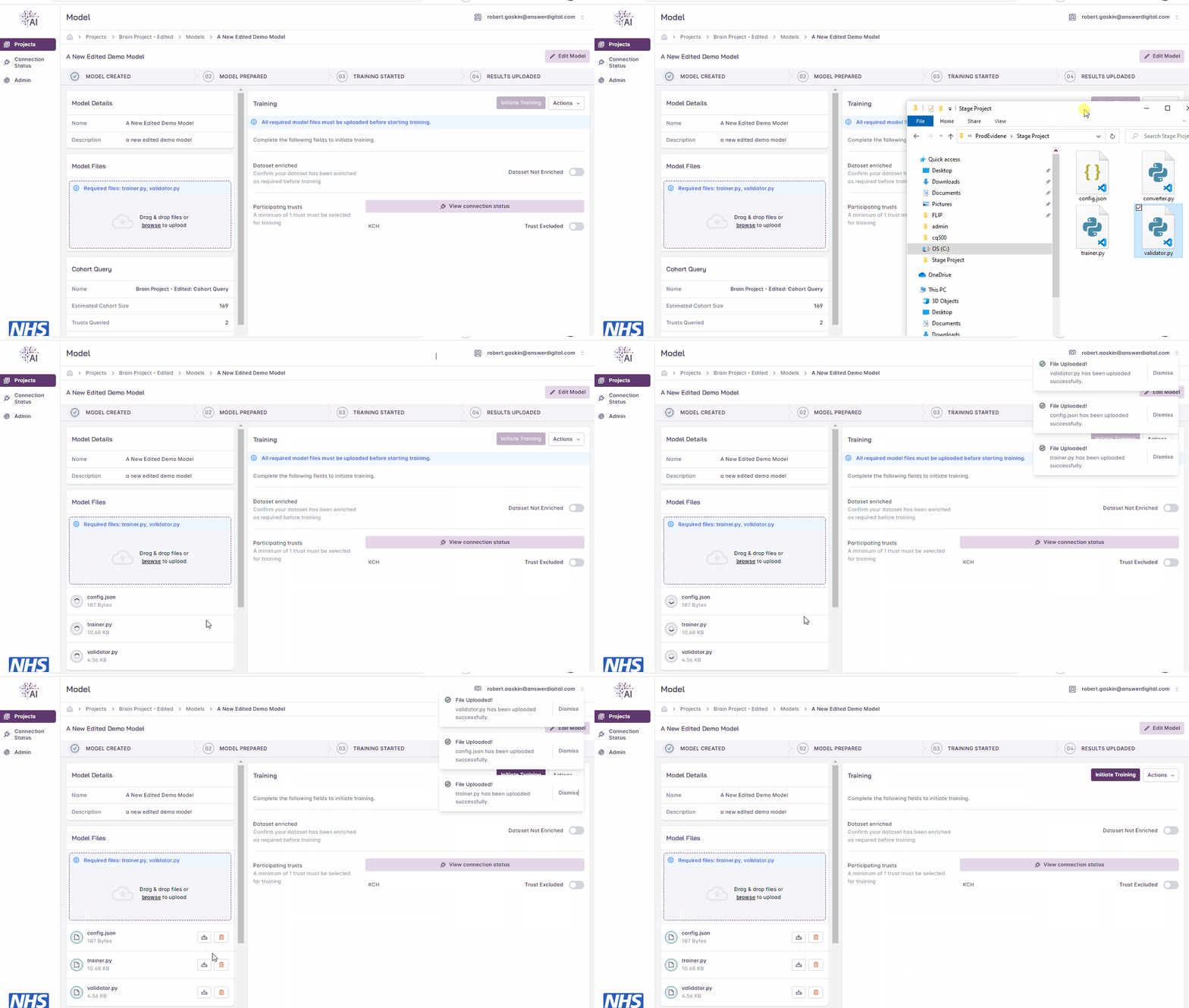
Uploading files.
Training Configuration
Note
The following configuration applies to NVIDIA FLARE apps. For Flower apps, training configuration is managed via pyproject.toml. See the FL nodes documentation for details.
Prior to commencing training you may also upload an optional config.json file (see example below). The config file defines variables which are used during FLIP training (e.g. GLOBAL_ROUNDS, LOCAL_ROUNDS, AGGREGATION_WEIGHTS, AGGREGATOR).
{
  "GLOBAL_ROUNDS": 5,
  "LOCAL_ROUNDS": 2,
  "IGNORE_RESULT_ERROR": false,
  "AGGREGATOR": "InTimeAccumulateWeightedAggregator",
  "AGGREGATION_WEIGHTS": {
     "KCH": 1.0,
     "UCLH": 0.5
  }
}
Note
All config properties have default values. If a config.json file is not uploaded, or some properties are missing from the file, default values will be utilised at runtime.
See default values specified below.
- GLOBAL_ROUNDS
Number of global training iterations. How many times the server should execute the
trainer.py. Must be greater than 0. Less than 100.Default=1
- LOCAL_ROUNDS
Number of local training iterations at client sites. Must be greater than 0. Less than 100.
Default=1
- IGNORE_RESULT_ERROR
Whether training should proceed if a client returns an error.
Default=false
- AGGREGATOR
The nvflare aggregation component used to aggregate training results from each client.
Warning
Allowed values are “InTimeAccumulateWeightedAggregator” or “AccumulateWeightedAggregator”. As of v4, FLIP only supports aggregator components built into nvflare. Specifying any other value will cause a config validation error and prevent training from initiating.
Default=”InTimeAccumulateWeightedAggregator”
- AGGREGATION_WEIGHTS
Weight dictionary passed into the aggregator component to define its aggregation behaviour.
Warning
Client sites must be referenced via their common abbreviation e.g KCH=Kings College Hospital, UCLH=University College London Hospital. Weights must be provided as a valid json object.
Default=1.0 applied to each client site
{
    "KCH": 1.0,
    "UCLH": 1.0
}
View Files
Navigate to the project page
Navigate to the Model Files section on the left-hand side of the model page
Click the download icon to view the contents of a file that has been uploaded
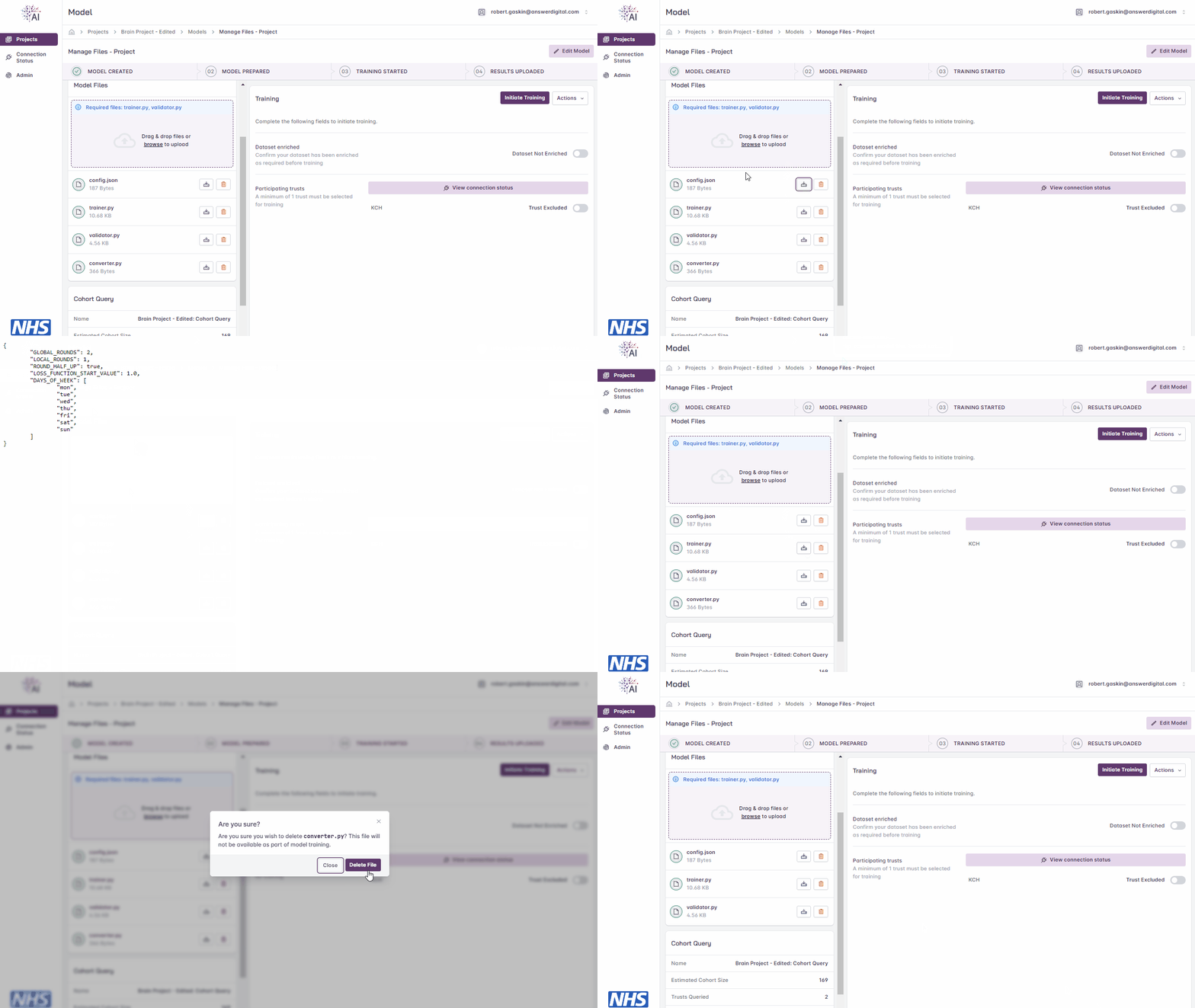
Managing uploaded files.
Delete Files
Navigate to the project page
Navigate to the Model Files section on the left-hand side of the model page
Click the bin icon to delete a file that has been uploaded
Training
FLIP allows for multiple models to be deployed to and trained at multiple Trust sites concurrently, using either NVIDIA FLARE or the Flower Framework to train, test and aggregate at each of the relevant nodes and report back to the user interface once the training is complete.
FLIP uses the concept of nets that are deployed on the Central Hub and remote hardware at each Trust. Each net consists of a controller and worker (to manage the model training cycle) and FLIP uses a task scheduler to manage the resources available on the hardware at Trust sites. The scheduler maintains a queue of waiting tasks, when a net becomes free a task is assigned to it.
This scheduling capability means model developers can submit their model for training via the UI and need not be concerned with matters such as GPU capacity or existing jobs that are running/queued. When initiating training the platform will check for available nets and assign the model training to an available net.
While a model is waiting for a net, its place in the queue is shown alongside its status — e.g. Model Queued (2), where position 1 is the next model to start — both on the Models page and on the model’s page, and the model’s Live activity feed logs a new line each time the model moves up the queue.
Initiate Training
When model files have been uploaded, you will then need to confirm that the dataset has been enriched and specify the number of local iterations.
Note
You must confirm the data enrichment step is complete (even if no enrichment of the dataset was required and/or actually performed) before training can commence.
Navigate to project page
On the right-hand side, toggle the button to confirm the dataset has been enriched
Click the ‘Initiate Training’ button to start the training cycle
Once the training cycle has been initiated, the progress bar at the top of the page will update as the various stages of the training cycle complete i.e., a green tick will appear
On the right-hand side of the page a window will also pop up to provided detailed status updates i.e., with date and time stamps, against each activity. The status messages show the scheduling activities, including queuing, net assignment, training in progress and training complete.
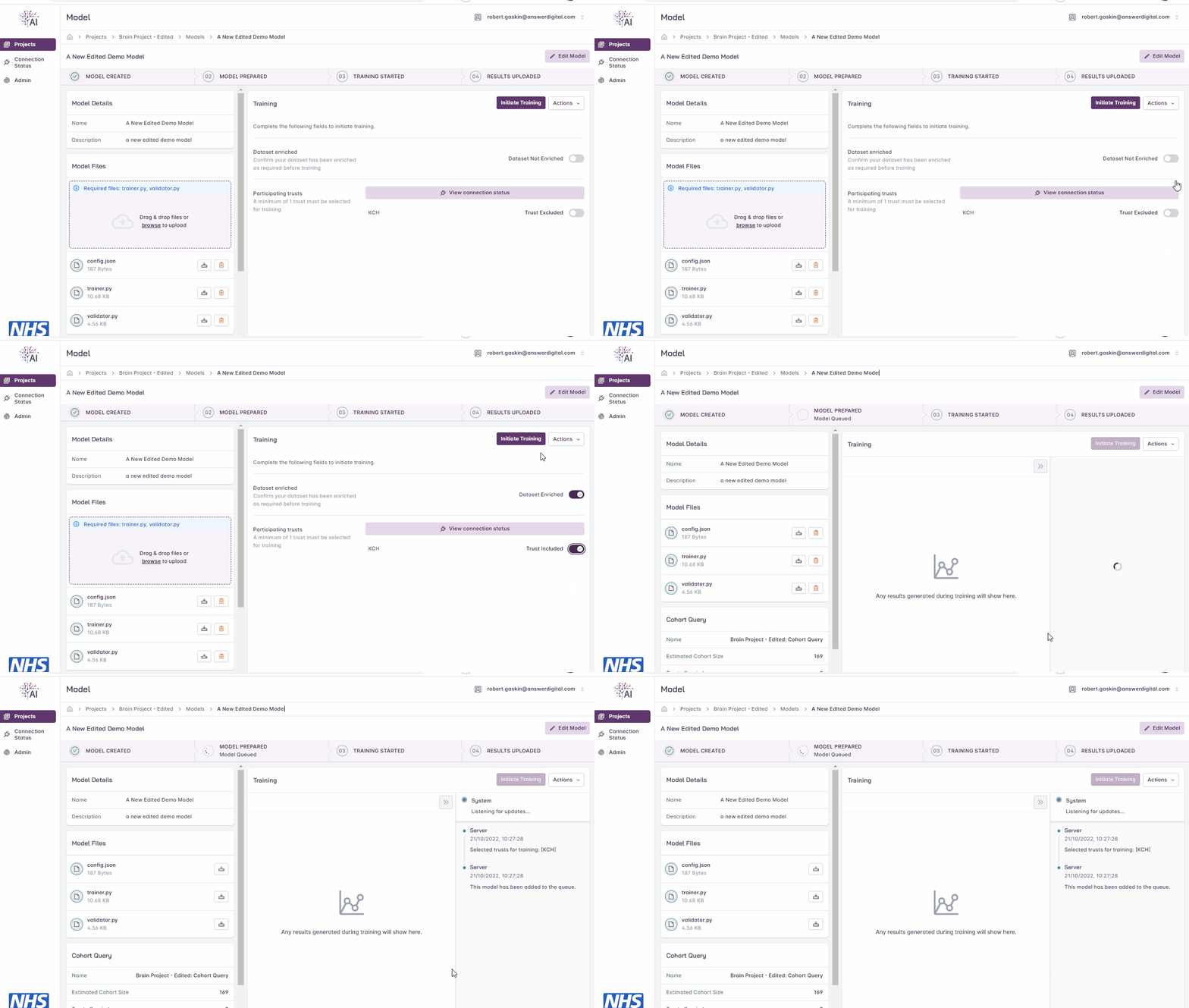
Initiating model training.
Stop Training
Note
If the training has already completed the ‘Stop Training’ option will be greyed out (see View Results).
Click the ‘Actions’ drop-down menu
Click the ‘Stop Training’ button
When the model training has been stopped, the progress bar will show at which stage the process was stopped
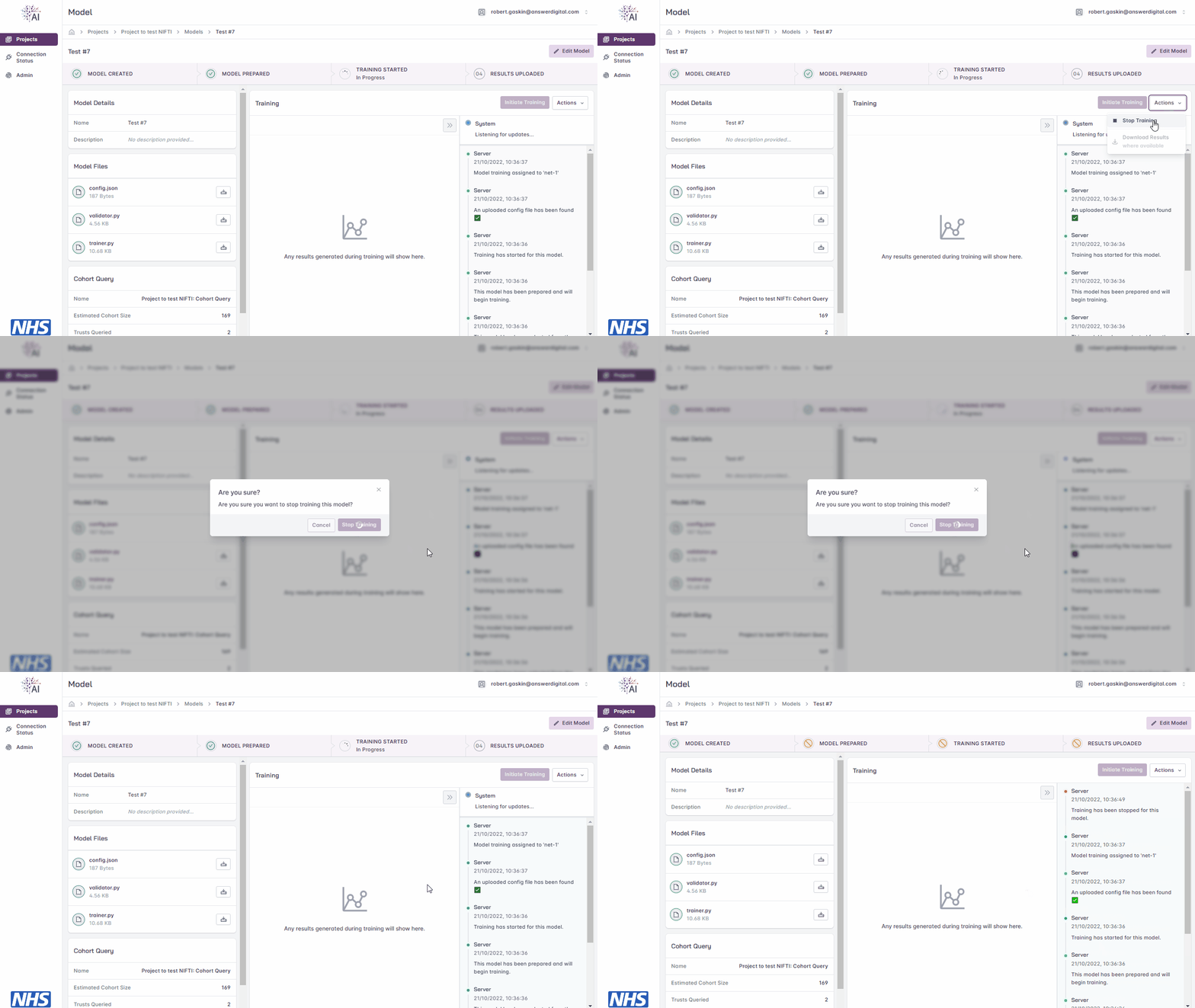
Stopping model training.
View Results
Note
Model training must be completed before users are able to download the results.
Click the ‘Actions’ drop-down menu
Click the ‘Download Results’ button
Open the .zip file downloaded to your local machine to view the results
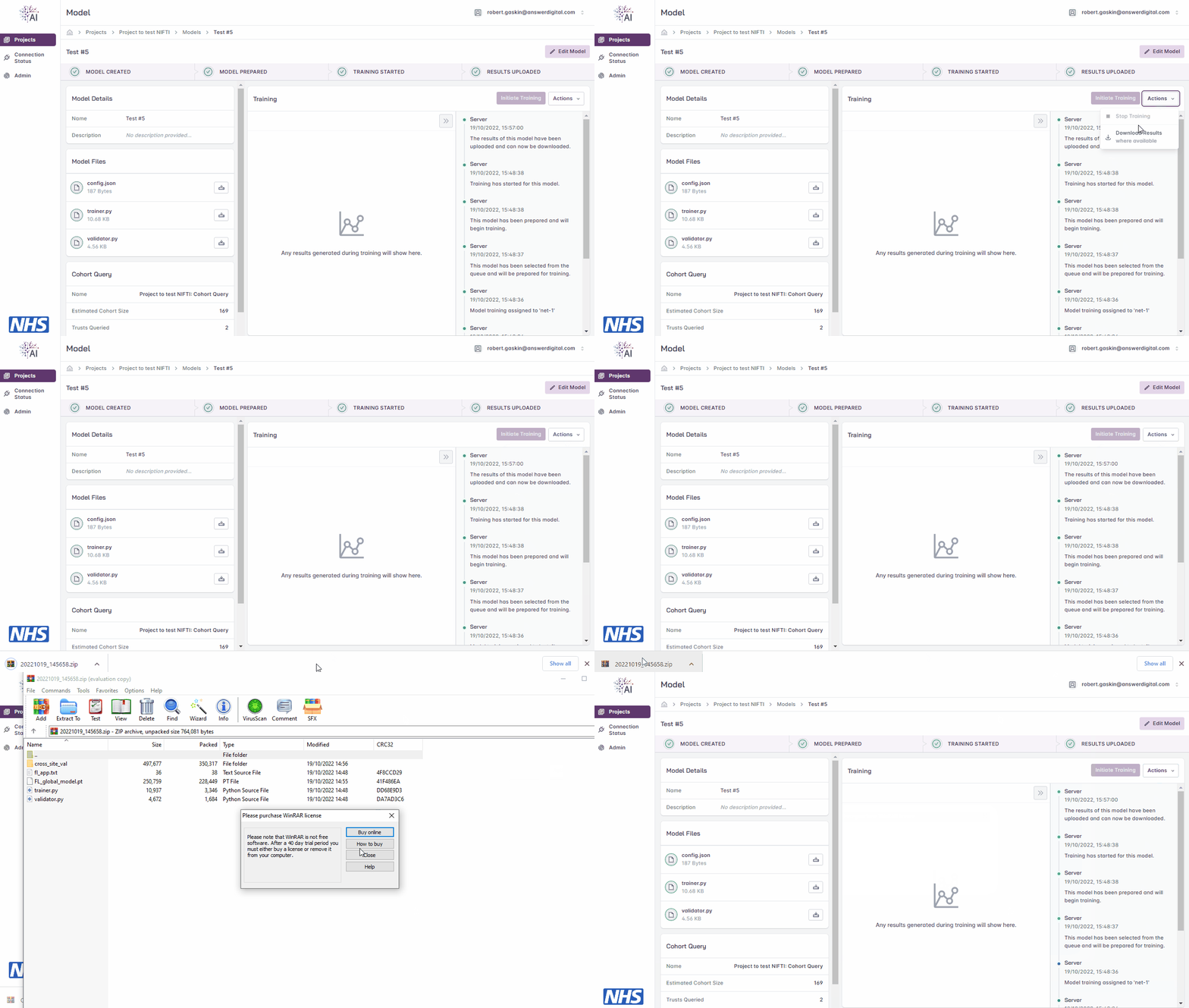
Downloading model training results.
Metrics
During the training cycle, any metrics specified by the model developer e.g., loss function, average score, etc., are displayed during and following the training cycle.
Hovering over the graphs at various points will display the values.
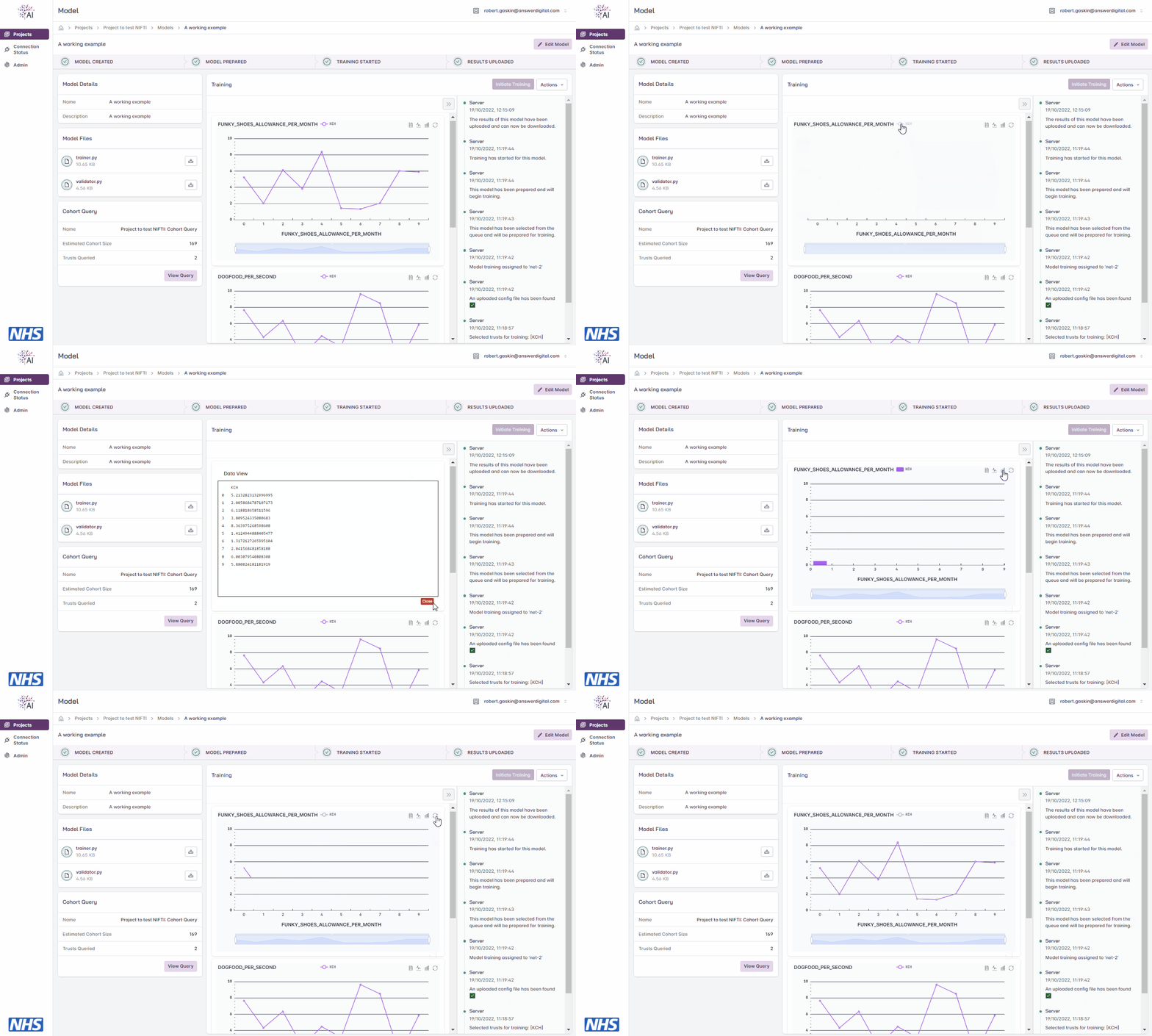
Viewing model training metrics.
Connection Status
The Connection Status page shows the live state of the federation. Each participating Trust is shown as online, degraded or offline based on its most recent heartbeat, and can be viewed as a list or as a radial topology.
The FL nets card reports the FL client-to-server connectivity for each net — that is, whether each Trust’s FL client is connected. No training requests can be sent to a Trust whose FL client is offline.

Viewing the federation connection status.