FLIP Admin
Warning
User must be assigned the admin role.
Projects
FLIP Admins are responsible for un-staging projects and completing the Project Approval process.
Project Un-staging
Model developers must stage a project for approval in order to progress to training of models against the cohort defined within the project. Once a project has been staged for approval, the project will be locked and no further amendments to the project or cohort query can be made.
If a project or a project’s model needs to be amended i.e., at the request of a model developer or as an outcome of the approval process, the model developer will need to liaise with a FLIP Admin to un-stage the project and re-enable editing.
Navigate to the project list
Select specific project and navigate to the project page
Click the ‘Unstage Project’ button
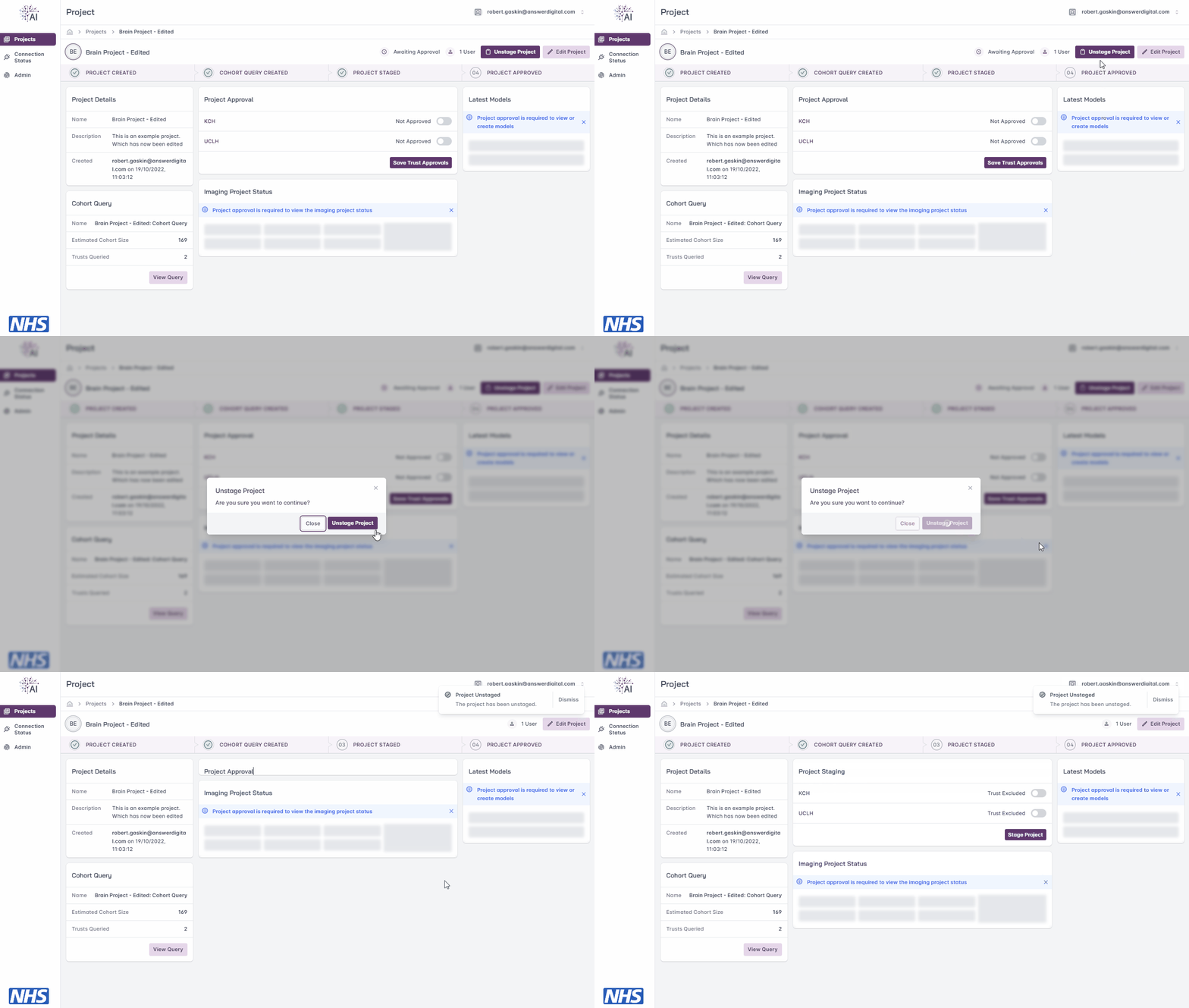
Un-staging a project.
Project Approval
Once the offline project approval process has been completed, the outcome of approval at each Trust can be selected.
Approving a project allows the next stage of model training to commence and triggers the image retrieval process at each Trust.
Warning
The model developer will not be able to initiate training at Trusts that have not approved to participate in the project and its model’s training.
Navigate to the project page
Navigate to the ‘Project Approval’ section
For each Trust selected to be a potential participant in the project, toggle the switch to indicate their approvals, or lack thereof
Click the ‘Save Trust Approvals’ button
For example, the below reflects a case where only one Trust is marked as approved:
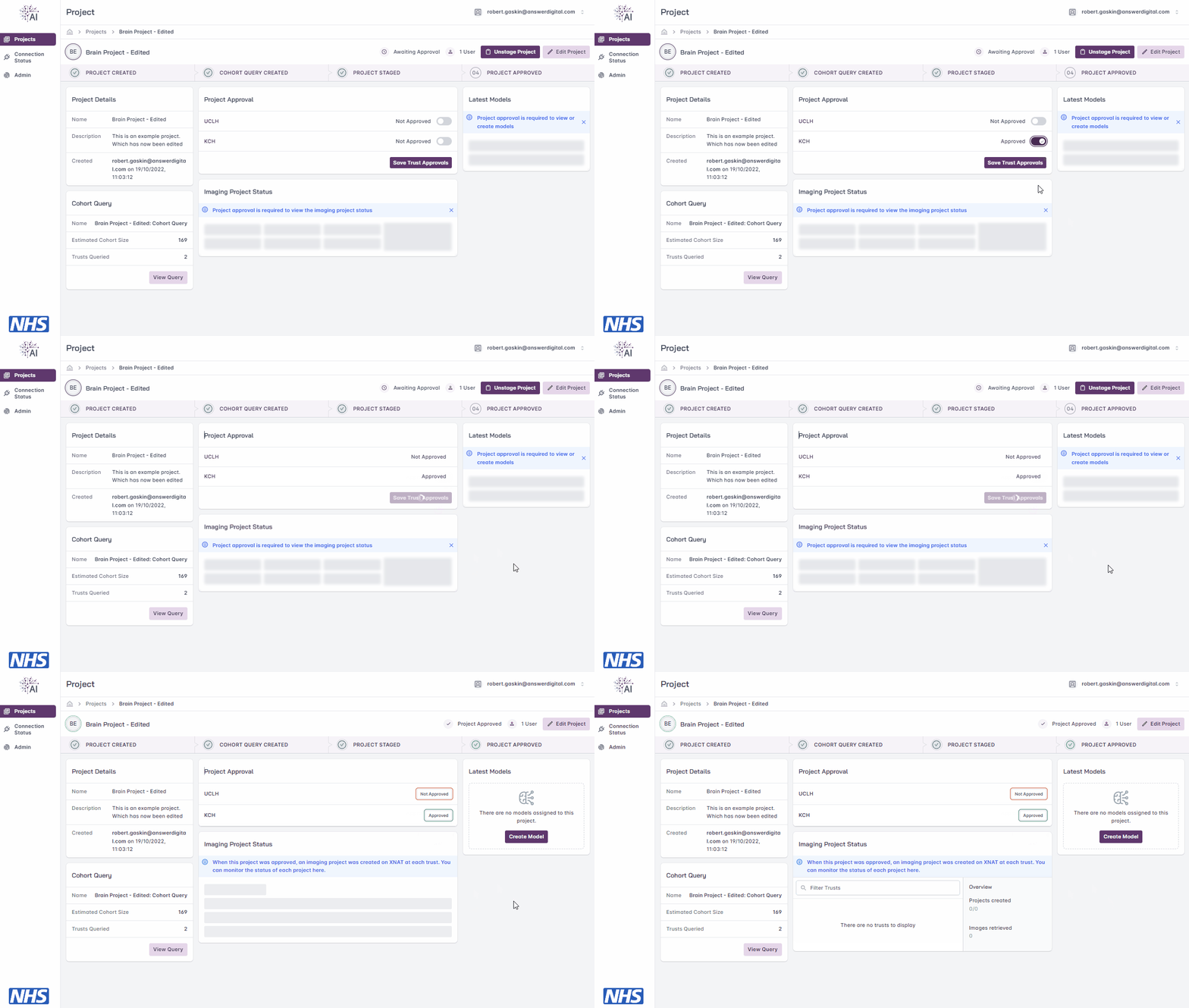
Approving a project.
Admin Area
The Admin Area enables certain functions, such as user management, configuration of deployment mode and the site banner, etc., available only to users with the admin role. To access this page, click the ‘Admin’ button on the left-hand side in the navigation menu.
User Management
The User Management area facilitates:
Registration of new users
Assignment of a user’s role
Disabling and re-enabling of user accounts
Resetting of user passwords
Note
Roles are exclusive — each user holds exactly one role at a time. See User Roles for the available roles and the permissions each grants.
Register User
Click the ‘Register User’ button
Enter the new user’s email address and select a single role (
admin,researcherorviewer)Click the ‘Register User’ button
The user will be emailed a one-time password to use on their Initial Login

Registering a new user.
Disable/Enable User
FLIP does not facilitate the deletion of user accounts, but rather enables accounts to be disabled in order to revoke access (and re-enabled to return access).
Select the user from the user list
Click the ‘…’ button
Select the option to ‘Disable User’
Note
Disabled accounts may be re-enabled in a similar fashion.

Enabling a user.
Manage Role
Note
A user’s role may be re-assigned at any time. Each user holds exactly one role.
Select the user from the user list
Choose the new role from the radio list (
admin,researcherorviewer)Click the ‘Save User’ button

Re-assigning a user’s role.
Reset Password
Note
Users are able to reset their password themselves via the Forgot Password functionality on the Login page.
Select the user from the user list
Click the ‘…’ button
Click the ‘Reset Password’ button

Resetting a user’s password.
Reset User MFA
Note
Use this when a user has lost their authenticator device and needs to enrol a new one. The reset clears the user’s TOTP preference and revokes any active sessions, so on the next sign-in they are routed through the MFA enrolment page to register a new authenticator.
Select the user from the user list
Click the ‘…’ button
Click the ‘Reset MFA’ button and confirm

Resetting a user’s MFA.
Warning
You cannot use this flow to recover your own MFA — the Admin Area requires an authenticated session, which you cannot obtain without your authenticator. If you are an administrator who has lost access to your TOTP device, see the “Cognito MFA Administration” section in deploy/README.md for the AWS CLI self-recovery runbook.
Site Banner
Note
The site banner may be enabled or disabled at any time.
The site banner allows:
A message to be set which is visible to all users of FLIP
A link to be provided so that when a user clicks the site banner they will navigate to the specified URL

Editing the site banner.
Deployment Mode
Note
Deployment Mode can be enabled and disabled at any time, and the Site and User Management functions are still available while Deployment Mode is enabled.
Deployment Mode will disable all core functions of the FLIP Platform, and is intended for use while deployment or maintenance is occurring.
Deployment Mode also quiesces federated training so the Central Hub can be redeployed without killing an in-flight run:
The FL scheduler stops picking up queued jobs. Queued jobs are not lost — they stay queued and resume, oldest first, once Deployment Mode is disabled.
A training run already in flight is allowed to finish normally (its results upload and final status are unaffected); it is only the start of new jobs that is paused.
Requests to initiate training are rejected with
503 Service Unavailablewhile the mode is enabled.
This means Deployment Mode can be enabled at any time — even mid-training — ahead of a planned redeploy: enable it, wait for the current run (if any) to reach a terminal status, redeploy, then disable it. The Central Hub deploy command prints a reminder of this workflow (see deploy-centralhub in the AWS deployment README), and the GET /fl/quiesce endpoint reports whether the platform is quiesced (deployment_mode plus fl_quiesced, which is true when no net’s scheduler is busy).

Enabling deployment mode.